
You do not need a foreign phone number or a dual-currency card — switch your mainland Apple ID's App Store region and the overseas apps download free. Choose Hong Kong, China for a Chinese interface, and set the payment method to None, so the billing address costs nothing. It only works for free apps; paid apps need local payment.
1. The short version
Using your existing Apple ID, you can switch the App Store country/region and download the apps you need at zero cost, with no verification. No foreign phone number and no credit card are required.
This approach is designed for free apps, which comfortably covers short trips and business travel. If you need to buy or subscribe to a paid app, it does not apply.
2. Step by step
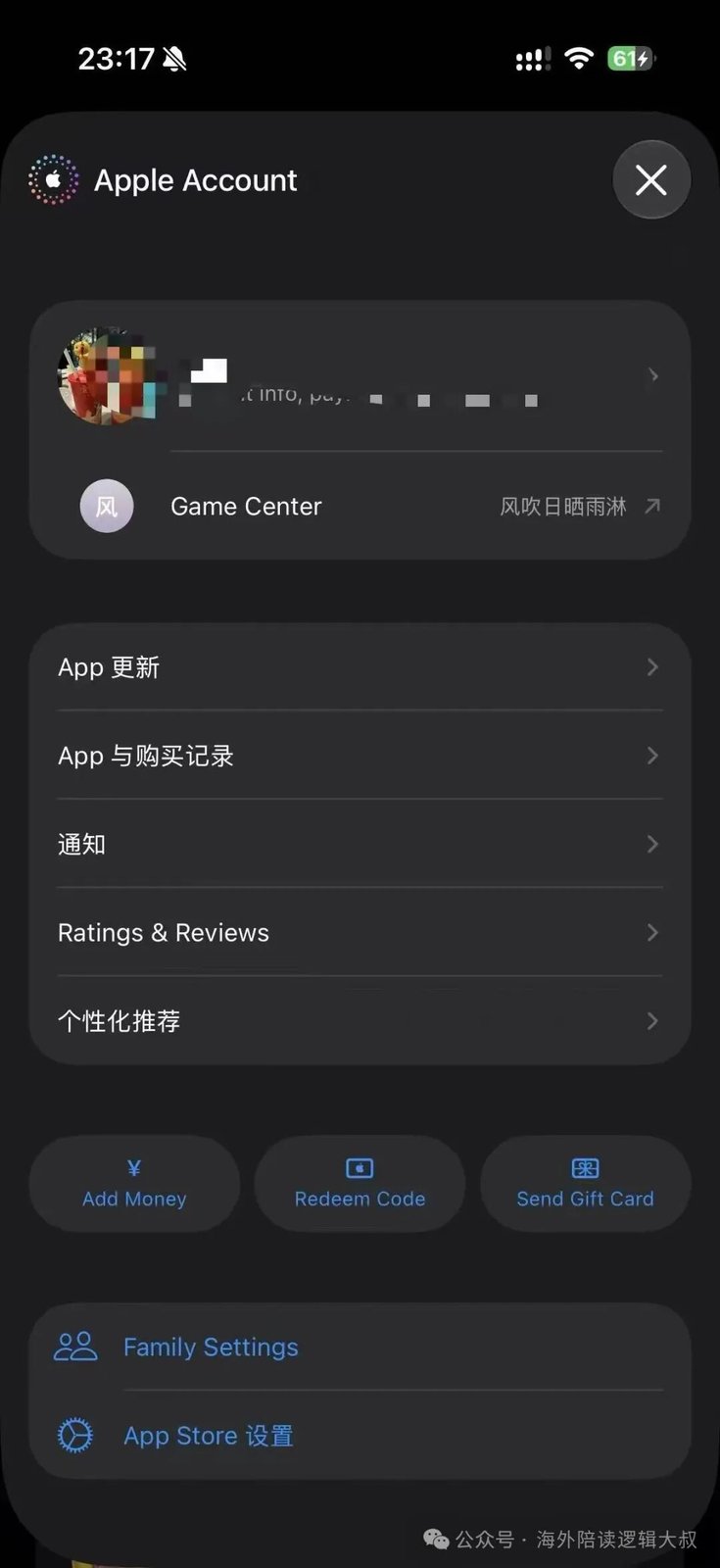
- Open the App Store and tap your profile picture
You may be asked for your password — enter it, or use Face ID, to reach the account settings.
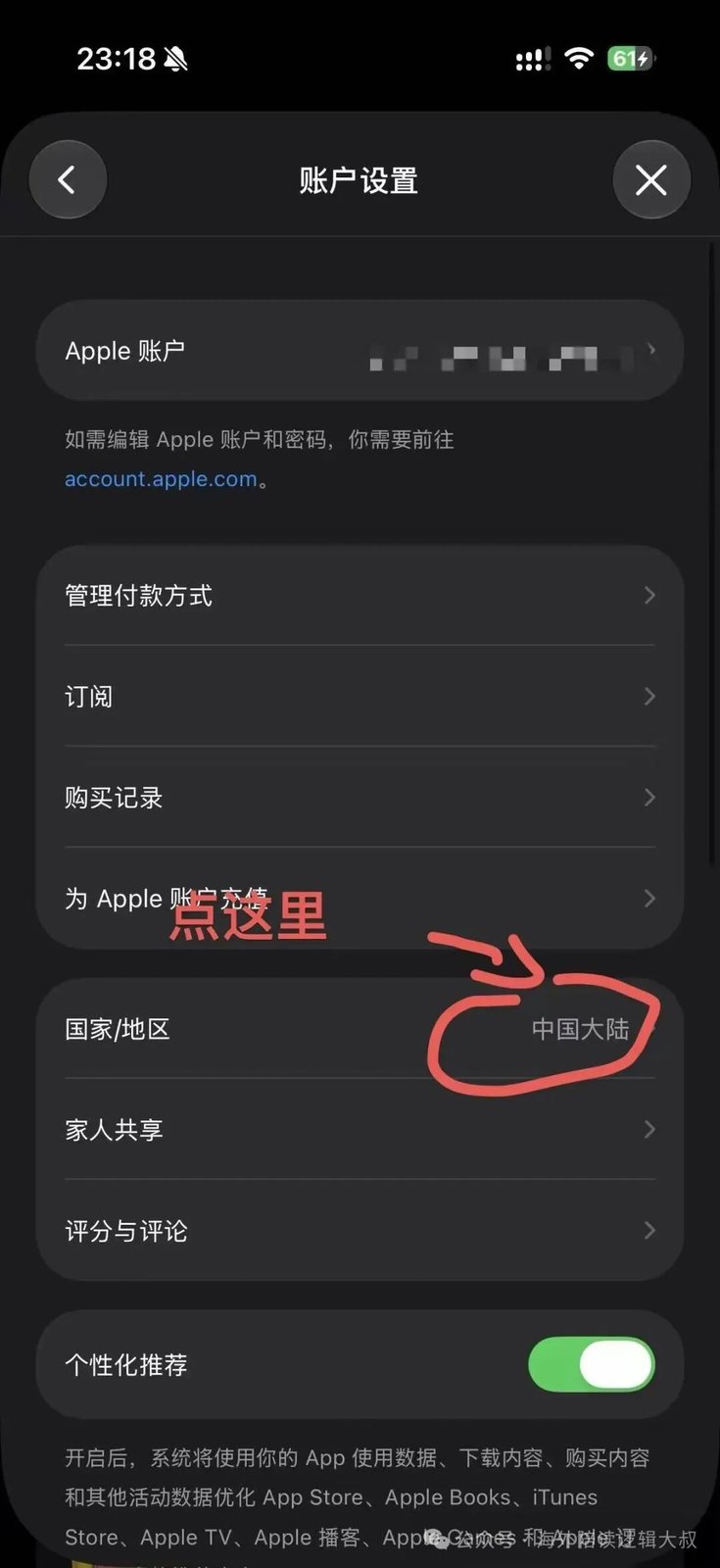
- Tap the row at the top with your account email
This opens your account details. Look for Country/Region.
- Tap "Change Country or Region"
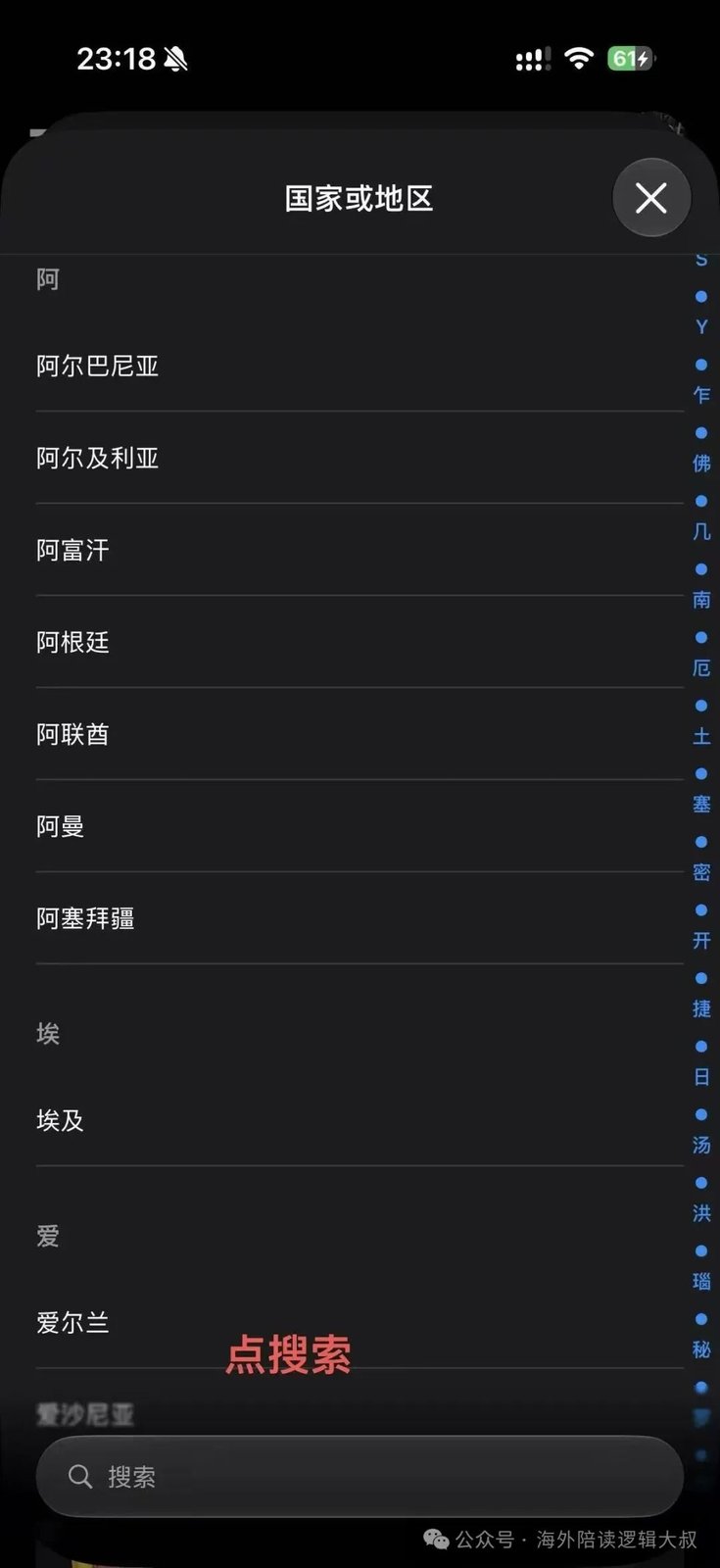
You will be asked to accept the terms, then taken to the region list.
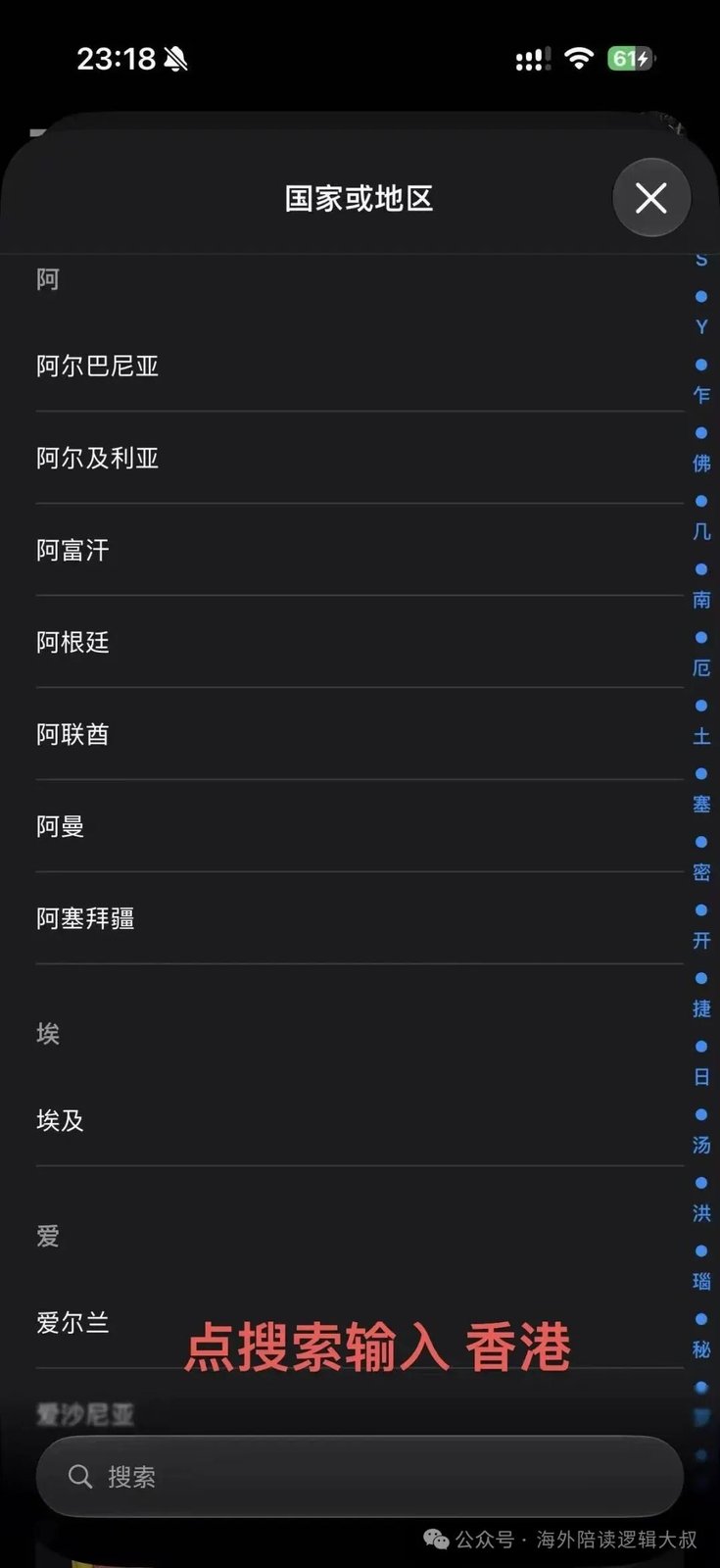
- Choose Hong Kong, China
The Hong Kong, China store has a Chinese interface, so nothing feels unfamiliar, and it carries the large majority of mainstream travel and lifestyle apps (maps, Uber, Grab and so on). For a first trip abroad it is the lowest-friction choice.
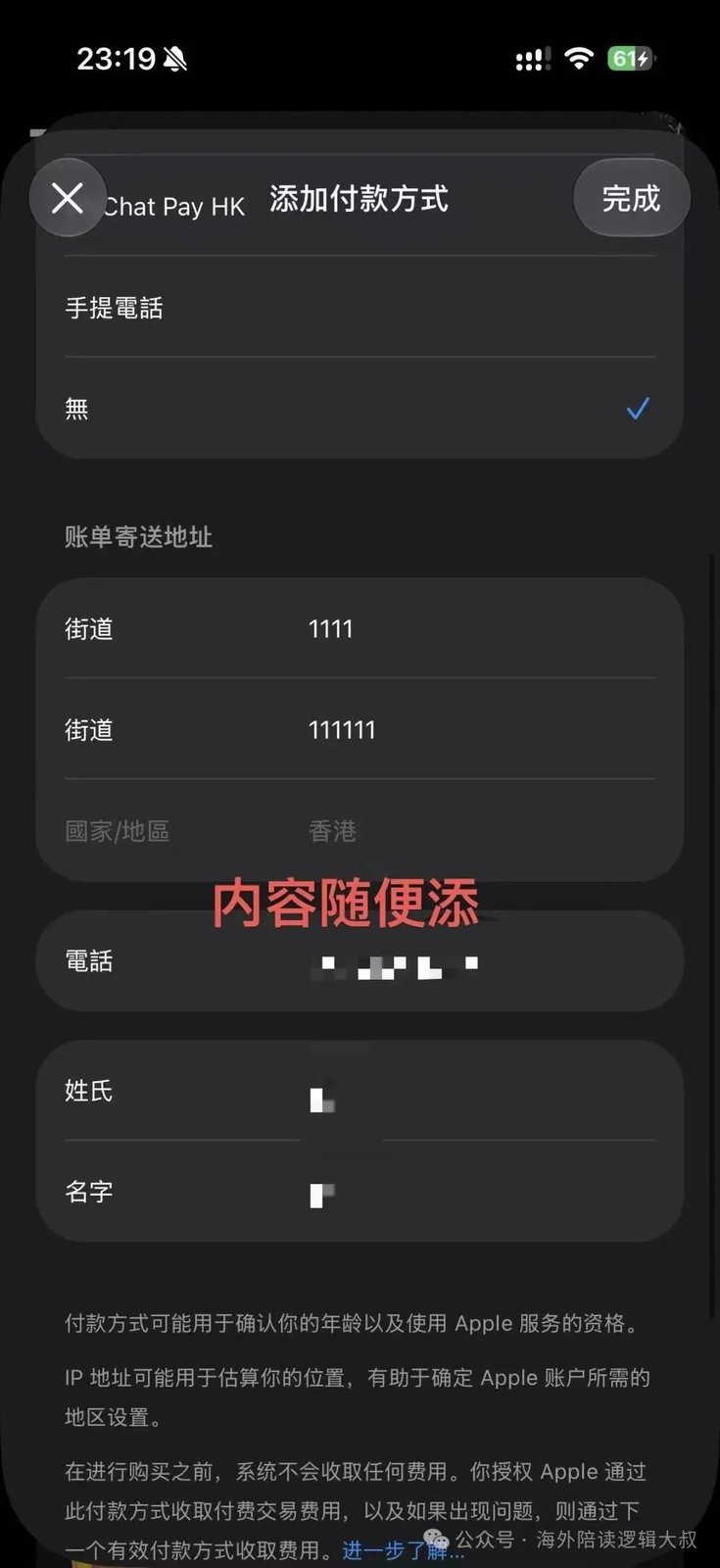
- Set the payment method to "None"
This is the crucial step. With "None" selected, the billing address, street and phone number can be filled in with any plausible values — it does not affect approval and costs nothing.
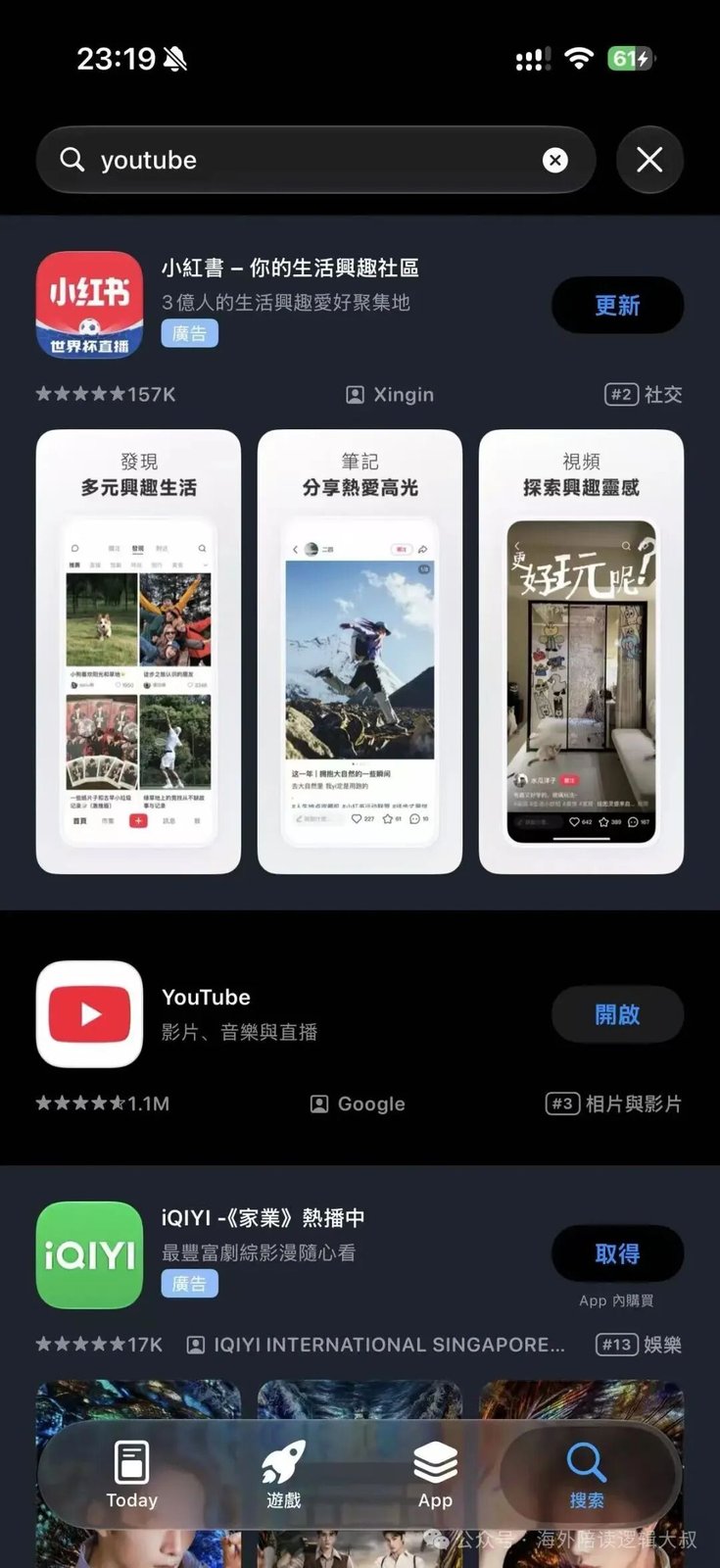
- Go back to the store and download
You can now download the overseas apps. Search for what you need and install it.
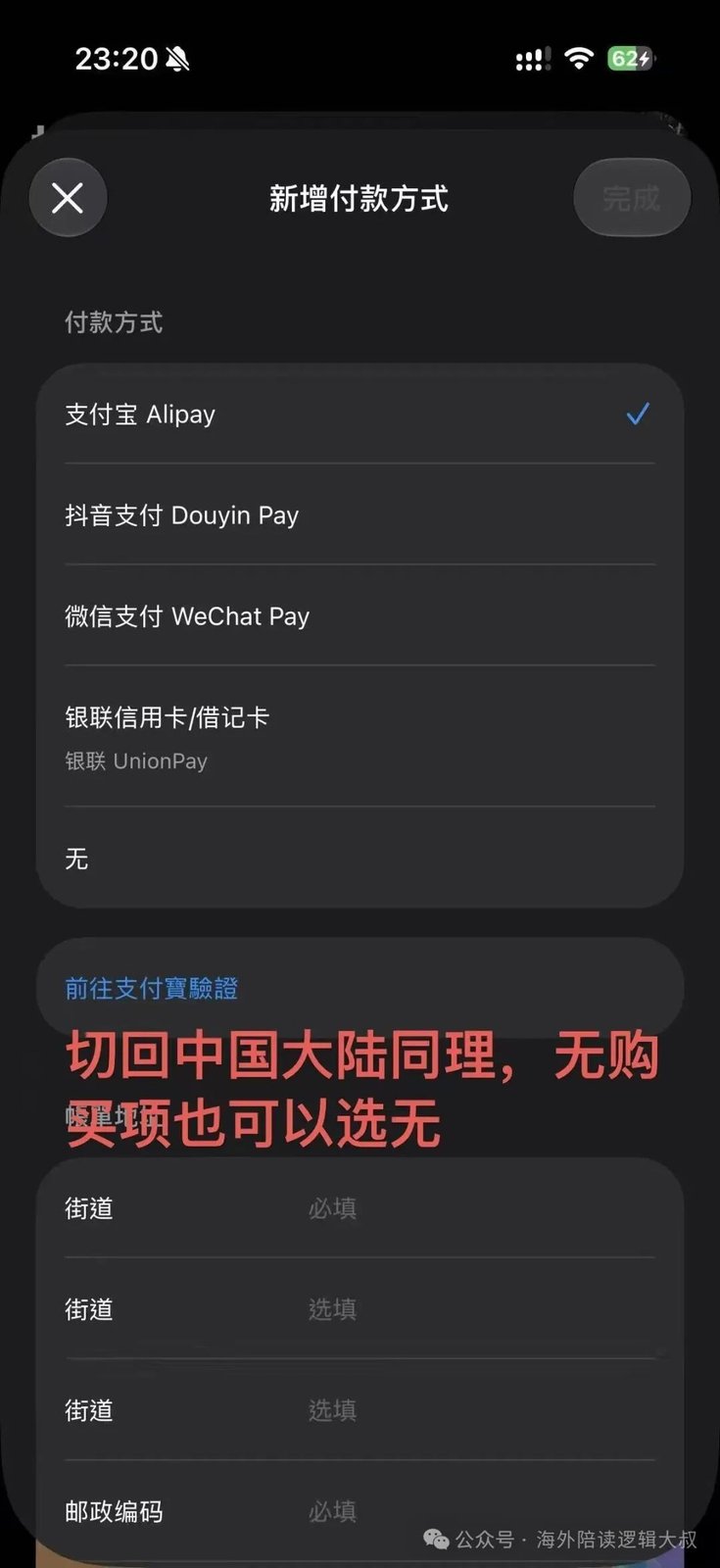
- Switch back afterwards if you like
If you will not need it for a while, follow the same steps to change the region back to your home country. There is no effect on normal use.
Some overseas apps cannot connect from certain networks. This is expected. They will activate normally once you are abroad and on a local connection. That is exactly why you should download everything before you leave rather than scrambling with region settings on arrival.
3. Things to watch out for
- Free apps only. Paid apps and subscriptions require a valid payment method for that region.
- Check for active subscriptions first. An existing subscription can block a region change.
- Your iCloud data is unaffected. Only the App Store region changes — photos, contacts and the rest stay as they are.
- Keep your password handy. The first download after switching may require re-verification.
- Avoid shared accounts from unknown sources. Resold Apple IDs carry real security risks and are often recycled.
4. What to install before you go
These categories cover most trips. Install them in advance:
| Category | Typical apps | What for |
|---|---|---|
| Maps | Google Maps | Walking, transit and driving directions |
| Ride-hailing | Grab, Uber | The main options in Southeast Asia, Europe and the US |
| Accommodation | Booking, Agoda | Hotels and price comparison |
| Translation | Google Translate, Gemini | Menus, signs and live conversation |
| Messaging | How schools, landlords and property offices reach you overseas |
For how these apps actually behave day to day in Malaysia, see Essential Apps for Living in Malaysia.
Frequently asked questions
Does changing region affect my iCloud data?
No. Only the App Store country/region setting changes. Photos, contacts, notes and other iCloud data are unaffected.
Why does the region change fail?
Common causes are an unfinished subscription, an outstanding store credit balance, or a pending order. Clear those first.
Will the apps still work when I get home?
They will open, but some may fail to load or sign in from certain networks. That is expected behaviour.
Do I need to add a payment method?
Set the payment method to 'None' — no card required. If you later want to buy a paid app, you must add a valid method for that region.