
Lesson Log is a free web tool at logicobs.xyz/en/lesson. Creating a log gives a teacher link and a parent link; the teacher plans each week in 30-minute lengths, prices can be set by length (for example 30 min 100, 60 min 200, 90 min 300), and once a lesson has started each side confirms whether it took place. Lessons confirmed by both are locked, and last month exports as an image for settling up. Everything works without an account; signing up with an email and linking the log adds finding it on any device and email updates.
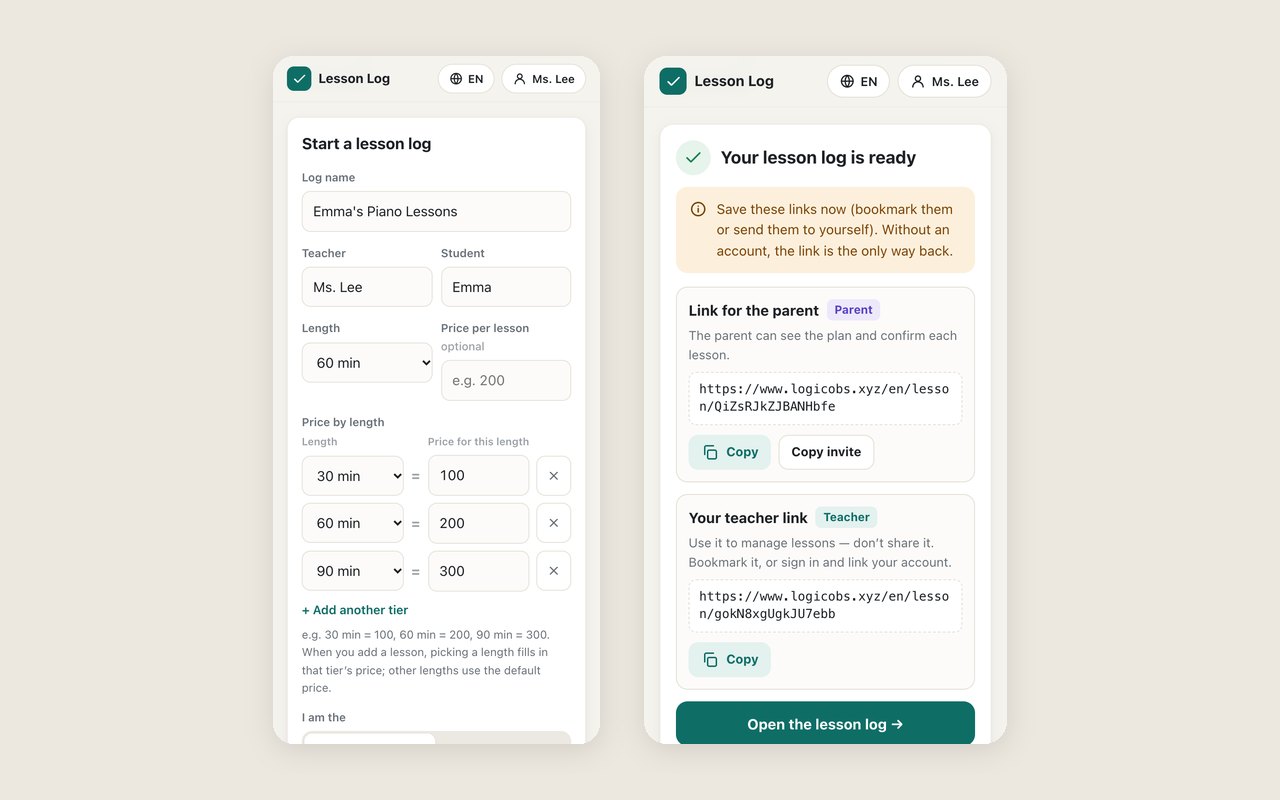
The tool lives at logicobs.xyz/en/lesson. It is free, works in a phone browser with no app to install, and needs no account. On the home page, enter a name (say, Amy's piano lessons), what to call the teacher and the student, and the usual length; add prices by length if you like, then tap Create lesson log. Two links appear straight away.
1. One link, two roles
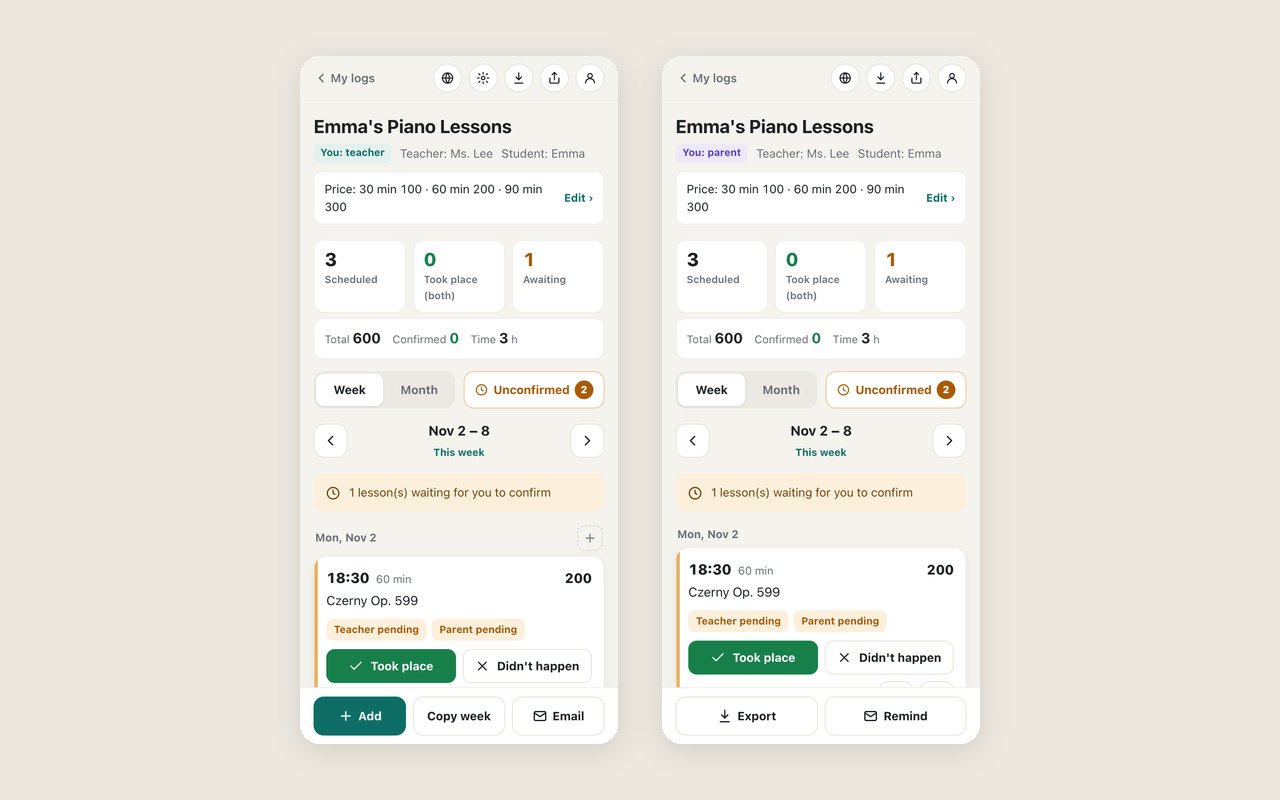
The two links open the same log, one for the teacher and one for the parent, but they can do different things:
| Link | Can | Cannot |
|---|---|---|
| Teacher link | Add, edit and cancel lessons, copy last week, set prices, confirm lessons, write lesson feedback, email the parent | Confirm on the parent's behalf |
| Parent link | See the plan, confirm lessons, add notes, skip a lesson, change prices, remind the teacher to confirm | Add, edit or delete lessons |
The 16 random characters in each link are the identity: whoever has a link has that role. The teacher keeps the teacher link and sends the parent link in any chat app. If a link leaks, the teacher can replace it with one tap and the old one stops working at once.
2. The teacher plans each week
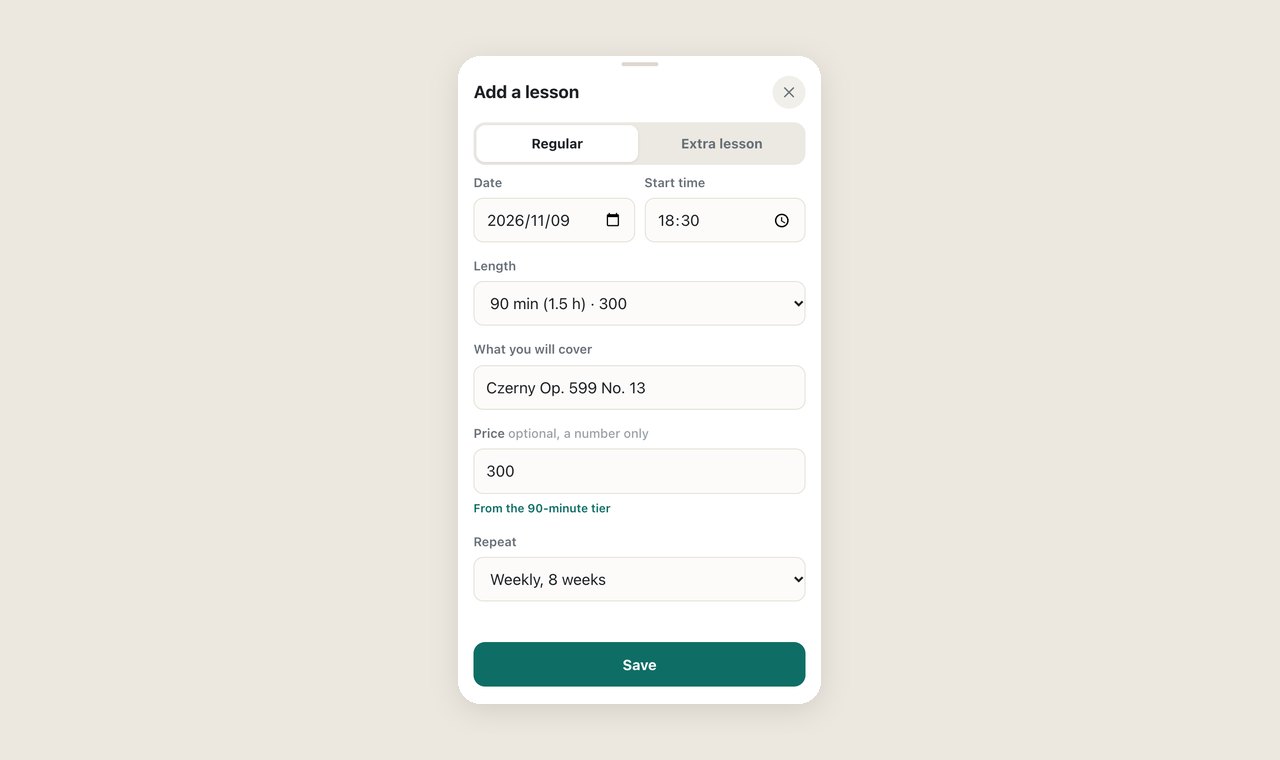
Tap Add at the bottom and fill in the date, start time, length, topic and price; the last two are optional. Length is a dropdown in 30-minute steps from 30 minutes to 5 hours. With prices by length set up, picking a length fills in its price: choose 90 minutes and 300 appears.
A fixed weekly lesson can repeat for 4, 8, 12 or 26 weeks, and if next week looks like this one, Copy last week does it in one tap, leaving out cancelled lessons. For a one-off extra lesson, switch to Extra lesson: it adds just that one, gets its own label on the card, and Copy last week never brings it along.
3. After class: did it take place or not?
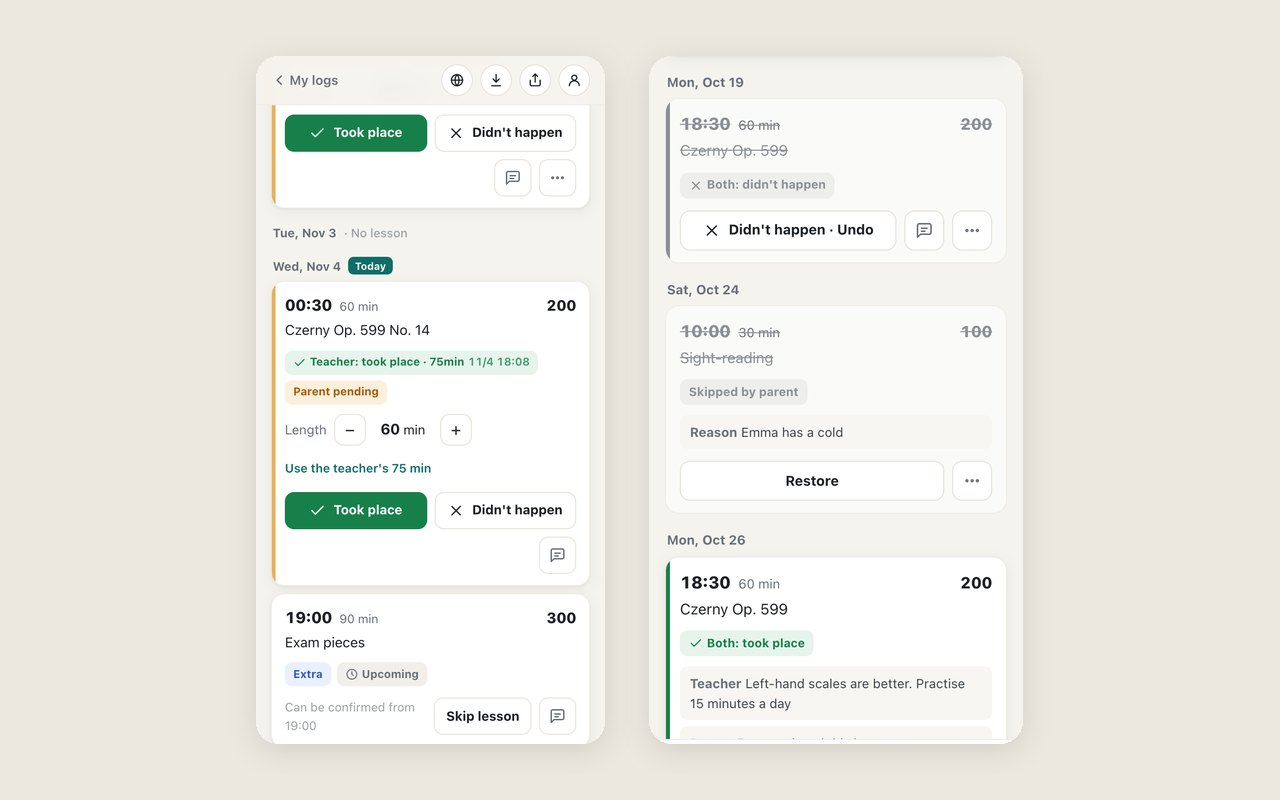
Once a lesson's start time has passed, the teacher and the parent each open their own link and pick one of two: Took place or Didn't happen. Before the start time there are no confirm buttons, only a note such as Can be confirmed from 18:30, so nobody taps one early by mistake.
| The two choices | The card shows | Counts toward money? |
|---|---|---|
| Only one side has confirmed | Orange, waiting for the other side | Not yet |
| Both say it took place, same length | Green, Both: took place | Yes, counts toward lessons and money at the confirmed length |
| Both say it didn't happen | Grey and struck through | No, like a cancelled lesson |
| One says yes, one says no | Red, Sides disagree | No, until either side taps Change to… and the answers match |
| Both say it took place, different lengths | Red, Sides disagree | No, until either side taps Change to 90 min (match the other side) |
If the lesson ran longer or shorter than planned, say it overran by a quarter of an hour, adjust it as you confirm. Above Took place there is a Length row with − and +; it starts at the planned length and moves 5 minutes per tap. Once one side has confirmed, the other side's card shows something like Teacher: took place · 75min, with a Use the teacher's 75 min link right under the length. The lesson only counts as matched when both lengths agree. The hours total at the top and the exported bill use the confirmed length; the price stays as planned.
When confirming, the teacher can also add Lesson feedback: the box above the buttons is for what you covered, how it went and what to practise, and it is optional. After confirming, the feedback shows on the lesson's card and is included in the confirmation email to the parent; to add more later, tap the note button on the card.
Once both sides agree, the lesson is locked: time, length and price can't be changed, and it can't be cancelled or deleted. Only the topic stays editable: the teacher taps ⋯ → Change topic. For anything else, one side first taps Undo. To call a lesson off in advance, use Cancel: the teacher picks a reason (student absent, teacher unavailable, holiday, rescheduled) and the parent taps Skip lesson; the card shows who cancelled it and why.
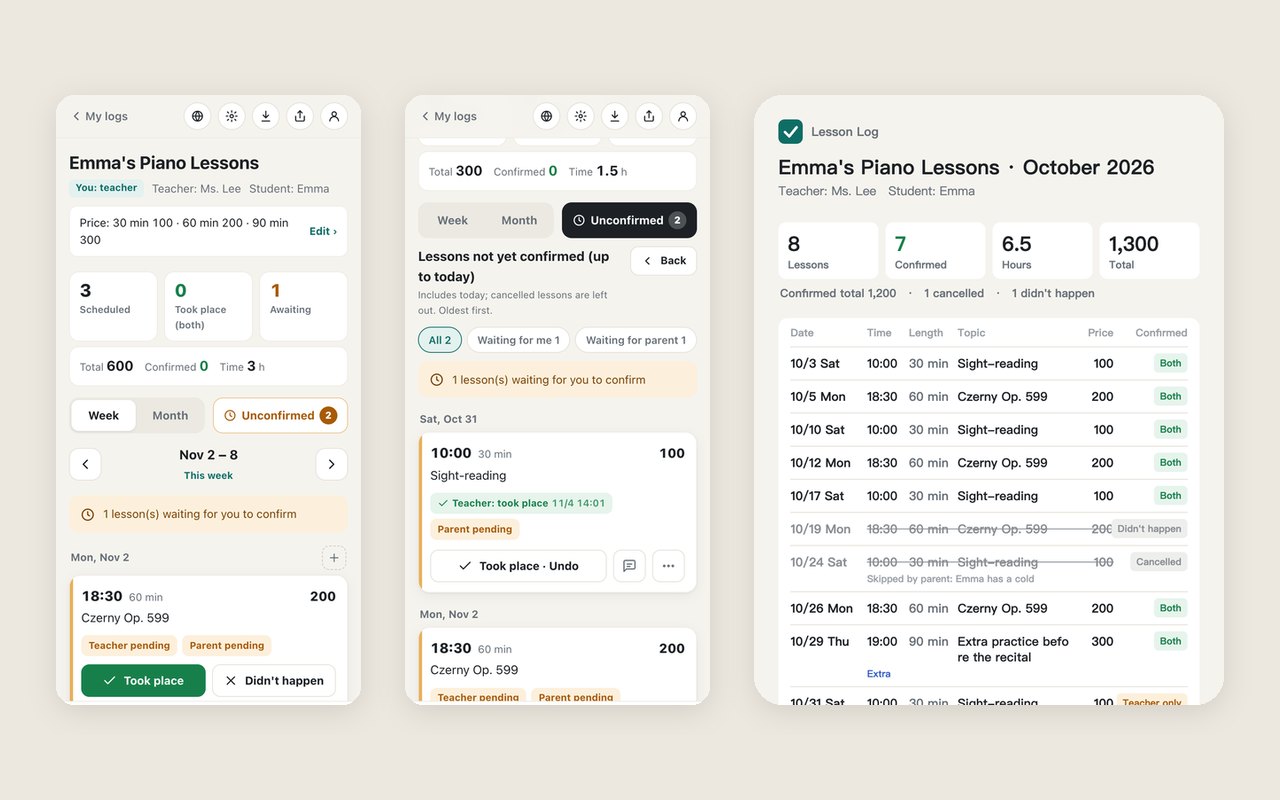
Next to the week and month switch is an Unconfirmed button. Its number counts lessons that have started but are not yet confirmed by both sides, whatever the week or month. Open it to filter by Waiting for me, Waiting for the other side or Disagree, and confirm all of yours at once.
4. Prices by length: 100, 200, 300
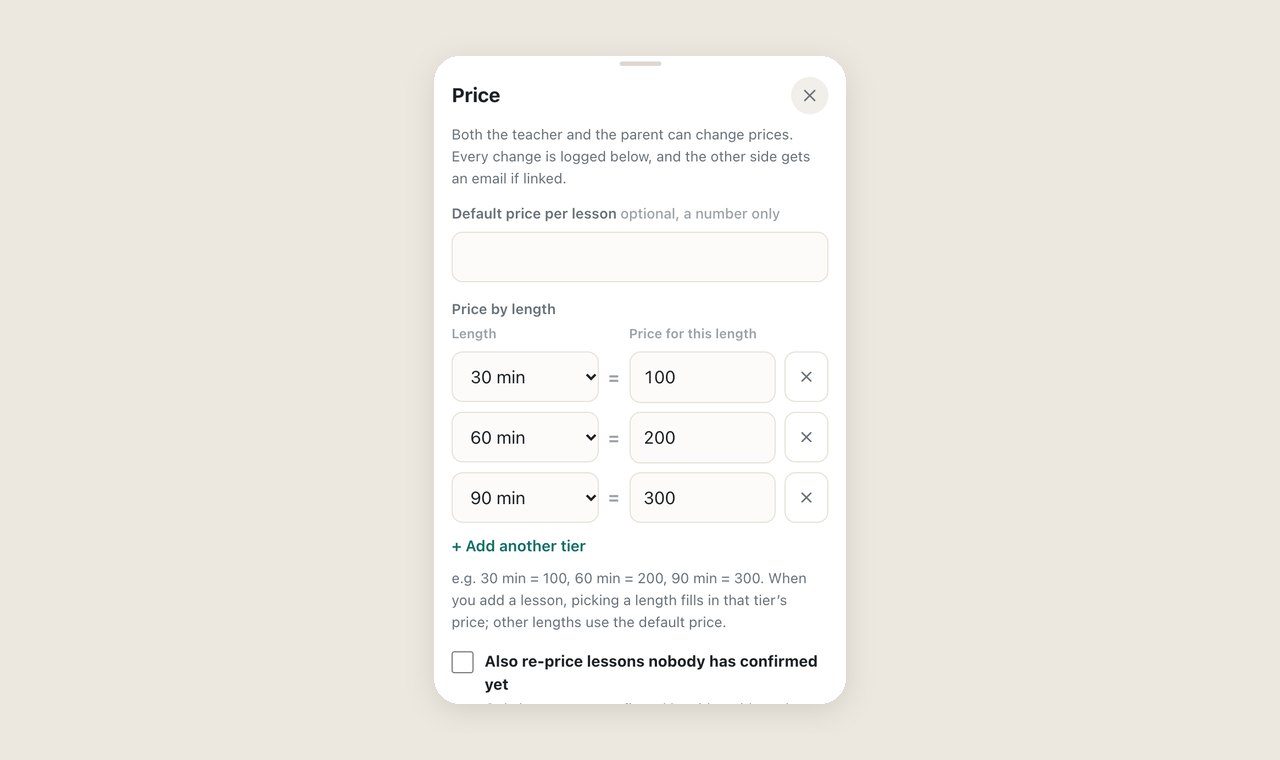
A price is just a number with no currency, and it is optional. For lessons paid by the session but not always the same length, use prices by length, up to 8 of them. For example:
| Length | Price for this length |
|---|---|
| 30 minutes | 100 |
| 60 minutes | 200 |
| 90 minutes | 300 |
After that, picking 30 minutes when adding a lesson fills in 100 and 60 minutes fills in 200. Lengths without their own price (say 120 minutes) use the default price per lesson, and if that is empty too, you type the price yourself.
Both the teacher and the parent can change prices, and every change is logged: who, when, and from what to what, for example from 200 per lesson to 30 min 100 · 60 min 200 · 90 min 300. When changing prices you can also re-price lessons nobody has confirmed yet; confirmed and cancelled lessons are never touched.
5. Settling the month: totals and last month as an image
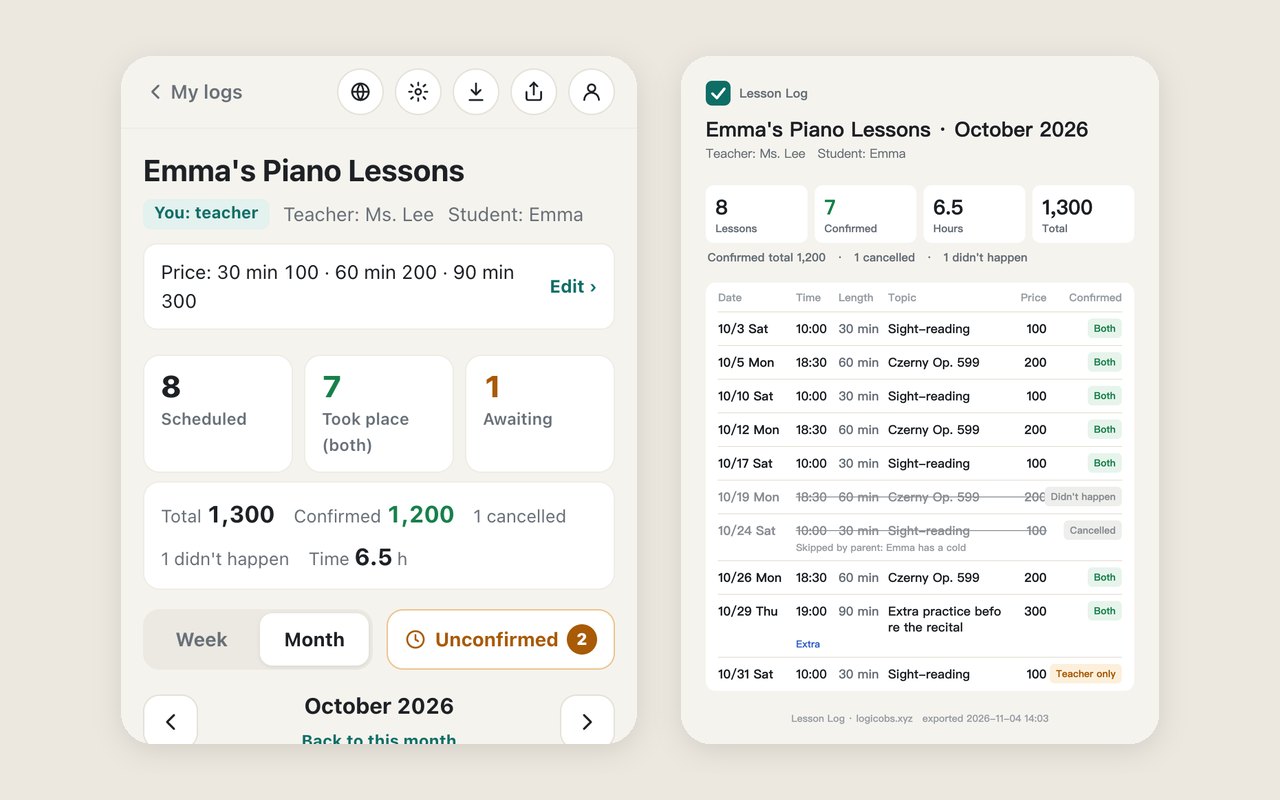
The Month view shows how many lessons were planned, how many both sides confirmed as taking place and the total hours. With prices set it also shows the total and the confirmed amount; cancelled lessons and lessons both sides marked as not happening are counted separately and cost nothing. October in the screenshot below: 8 lessons planned, a total of 1,300, 7 confirmed by both for 1,200, plus 1 cancelled and 1 that didn't happen.
Export opens on last month and draws an image with one row per lesson: date, time, length, topic, price and confirmation status, with cancelled and not-happened lessons struck through and their reason shown. On a phone, long-press the image to save or forward it, which also works inside WeChat. When an image is awkward to send, Copy as text gives the same content as plain text.
6. What signing up adds, and what it doesn't
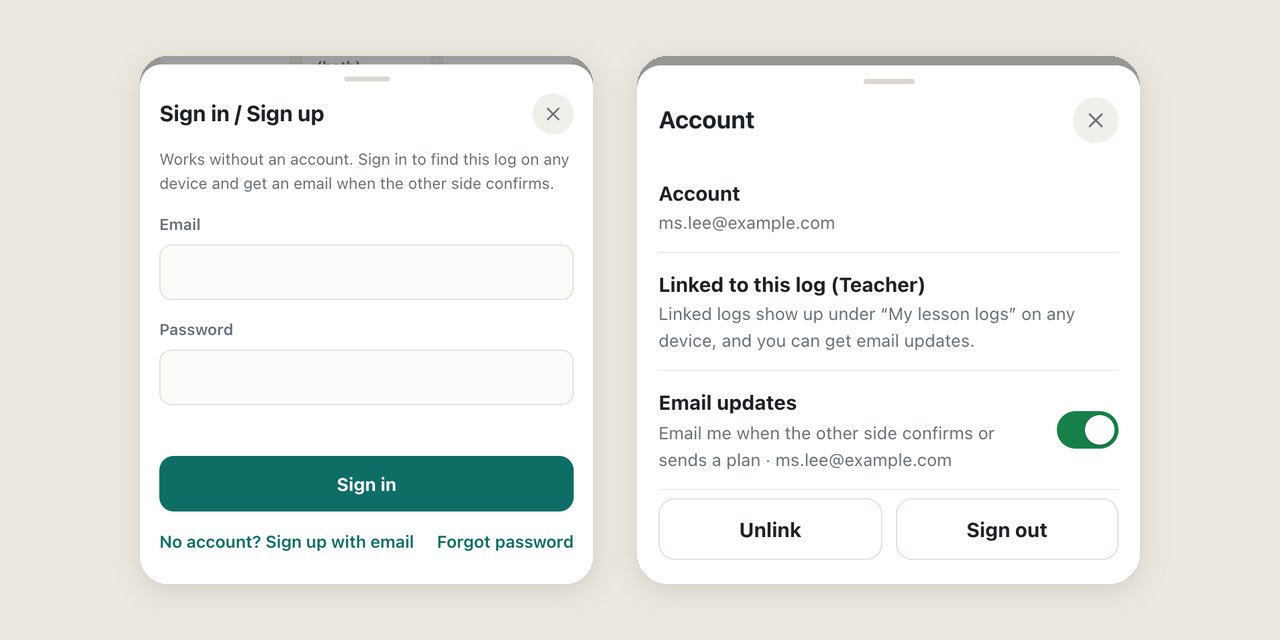
Without an account you lose nothing: planning, confirming, prices and export all work, and the links are all you need. Email updates don’t need an account either: just add an address under Notification emails. What signing up adds is finding the log on any device. Sign up with an email address and a password, or in one tap with a Google account (the first sign-in creates the account); no phone number needed.
| No account | Signed up and linked to this log | |
|---|---|---|
| Planning, confirming, prices, export | Everything works | Everything works |
| Opening the log | Only through the link (bookmark it or send it to yourself) | The link, or My lesson logs after signing in |
| My lesson logs list | Only logs opened on this device | On any phone or computer where you sign in |
| Email updates | Add an address under Notification emails (teacher 1, parent up to 5) | A reminder 2 hours before each lesson, and an email whenever the other side does something; you can turn them off |
| Your role | Set by the link | Still set by the link; the account only remembers it |
To link a log, open it with your own link, tap the person icon at the top right, sign in with your email or Google, then tap Link to my account. You come back to the same log after signing in, and it is linked right away. From then on you get an email when the other side confirms a lesson as taking place or not, skips, cancels or restores a lesson, changes a price, adds an extra lesson, sends the plan or asks you to confirm, and the button in the email opens your own link. To stop, turn off Email updates or unlink in the same place.
No account? Use Notification emails: tap Just add an email at the top of the log, type an address and tap Add. The teacher side can have 1 address and the parent side up to 5, for example both parents. A confirmation email arrives first, and updates start once you tap Start getting updates in it, so a typo or a stranger’s address never gets them; every update has an Unsubscribe link at the bottom. The emails are the same as for a linked account.
Lesson reminders: about 2 hours before each lesson, the teacher and the parent who have linked the log (with email updates on) or added a notification email each get a reminder with the date, time, length and topic; if the lesson can’t go ahead, the button in the email opens the log so you can cancel it. Only lessons with a start time that have not been cancelled get a reminder, and if the time changes you are reminded again for the new time. Times follow the time zone of the phone or computer that created the log, so the reminder is not hours off in Japan, Korea or anywhere else.
7. How I use it
- Before the first lesson the teacher creates the log, sets prices of 30 min 100, 60 min 200 and 90 min 300, makes the weekly lesson repeat for 12 weeks and sends the parent link.
- The teacher and the parent each sign up and link the log, so each lesson comes with a reminder 2 hours ahead, every confirmation arrives by email and a new phone never loses the link.
- After each lesson the teacher confirms and writes one line of Lesson feedback about what was covered; the parent reads it at home and confirms.
- Once a week, glance at the Unconfirmed number; if it is not zero, catch up.
- At the start of the month, export last month's image and settle the confirmed amount. If one lesson is disputed, the record shows who cancelled it and why.
Frequently asked questions
Do I need an account, and what does signing up add?
No. Everything works without an account; the links are all you need. Email updates don’t need an account either: add an address under Notification emails in the log (1 for the teacher, up to 5 for the parent) and confirm it. Signing up with an email or Google and linking the log adds finding it under My lesson logs on any device.
Can the teacher add feedback when confirming?
Yes. The optional Lesson feedback box above the confirm buttons is for what you covered, how it went and what to practise. It shows on the card and goes to the parent with the confirmation email, and you can edit it later with the note button. After both sides confirm, the topic can still be changed; time, length and price are locked.
Will I get a reminder before a lesson?
Yes. The teacher and the parent who have linked the log with email updates on each get a reminder about 2 hours before every lesson that has a start time and has not been cancelled. If the time changes, you are reminded again for the new time. Times follow the time zone of the device that created the log.
When can a lesson be confirmed?
The Took place and Didn't happen buttons appear once the lesson's start time has passed; a lesson without a start time can be confirmed from midnight that day. Once both sides have confirmed, the lesson is locked until one side undoes.
How do prices by length work?
Add up to 8 prices by length, for example 30 minutes at 100, 60 minutes at 200 and 90 minutes at 300. Picking a length when adding a lesson fills in that price, and other lengths use the default. Prices are plain numbers with no currency.
What if the lesson ran longer or shorter than planned?
When you confirm, adjust Length above the buttons in 5-minute steps; it starts at the planned length. The other side sees your length on the card and can match it in one tap. Different lengths show in red as Sides disagree, and the lesson only locks once they match. The hours total and the bill use the confirmed length; the price does not change on its own.
What if the two sides disagree?
If one side says the lesson took place and the other says it didn't, the lesson is marked Sides disagree in red, costs nothing and stays in the Unconfirmed list. Once you have talked it over, either side taps Change to: took place or Change to: didn't happen on the card, with no need to undo first.